
Frustrated by technical SEO talk? You’re not alone. Most guides sound like rocket science, leaving freelancers and small business owners completely lost. Meanwhile, your competitors are ranking higher simply because their websites load faster and work better on phones.
Here’s the painful truth: Ignoring technical SEO means Google ignores you. Slow pages, broken links, and mobile issues silently push your site down in rankings every day. But here’s the good news – you don’t need to be a tech wizard to fix this.
This guide breaks down technical SEO into simple, actionable steps anyone can follow. No coding. No confusing terms. Just clear fixes that take minutes but boost your rankings for months. Ready to finally understand what really matters? Let’s dive in.
Table of Contents
Why Technical SEO Matters (Even If You’re Not a Developer)

Technical SEO sounds scary, but it’s just about making your website easy for Google to understand. Think of it like organizing a store – if products are hard to find or the aisles are blocked, customers leave. The same happens when search engines can’t properly “see” your site. Good technical SEO puts up clear signs and keeps the pathways open.
You don’t need coding skills to improve yours. Simple things like faster loading times, mobile-friendly design, and proper links tell Google your site is trustworthy. These factors determine whether you appear on page one or get buried in results. Even with amazing content, poor technical SEO can keep clients from finding you.
The best part? Most technical SEO fixes take minutes but keep working for you 24/7. Whether you use WIX, WordPress, or another platform, small tweaks can dramatically improve how search engines view your site. It’s the invisible foundation that makes all your other marketing efforts work better.
Website Speed: The Easy Fixes That Make a Big Difference
Slow websites lose visitors and rankings fast. But speeding yours up is easier than you think. Start by compressing images – tools like TinyPNG shrink file sizes without losing quality. Next, enable browser caching so repeat visitors load pages faster. Most website builders have simple settings for this.
Plugins and widgets often slow things down. Delete any you don’t use regularly. If you’re on WordPress, a caching plugin like WP Rocket (paid) or WP Super Cache (free) can work wonders. For WIX users, stick to essential apps and limit animations.
Finally, check your hosting plan. Shared hosting is affordable but often slow. Upgrading to managed WordPress hosting or WIX’s premium plans typically boosts speed immediately. Google’s PageSpeed Insights will show exactly what to fix – just address the “Critical” items first.
Mobile-Friendly Magic: How to Check and Fix Your Site

Over 60% of web traffic comes from phones, yet many freelancers’ sites fail mobile tests. Google now judges your site first by its mobile version – not desktop. Luckily, making yours mobile-friendly is straightforward.
First, test your site with Google’s Mobile-Friendly Test tool. It instantly shows problems like text too small to read or buttons too close together. Most website builders have mobile preview modes – use them to spot issues. Stick to simple designs with plenty of space between elements.
Avoid pop-ups that cover the screen on mobile, and make sure forms are easy to fill out with thumbs. Fonts should be at least 16px, and buttons at least 48×48 pixels. If using WordPress, choose a theme labelled “responsive.” These small adjustments ensure you don’t lose mobile visitors or rankings.
Site Structure 101: Helping Google Understand Your Pages
Think of your website like a book – without clear chapters and sections, readers get lost. The same goes for Google. A good site structure uses simple categories and logical links to show how your pages connect. Start by organizing content under clear sections like “Services,” “About,” and “Blog.” Each service should have its own dedicated page rather than lumping everything together.
Internal linking is your secret weapon. When you mention a related service or article, link to it. This helps Google see which pages are important and how they relate. For example, a “Web Design” page might link to your “Portfolio” and “Pricing” pages. Keep your navigation menu simple – too many options confuse both visitors and search engines.
Most website builders make this easy. In WordPress, use categories for your blog posts. In WIX, use the “Pages” menu to structure your site. Avoid deep nesting – pages should be no more than 3 clicks from your homepage. A clean structure helps Google index your content and improves user experience, which boosts your rankings.
The Simple Truth About XML Sitemaps
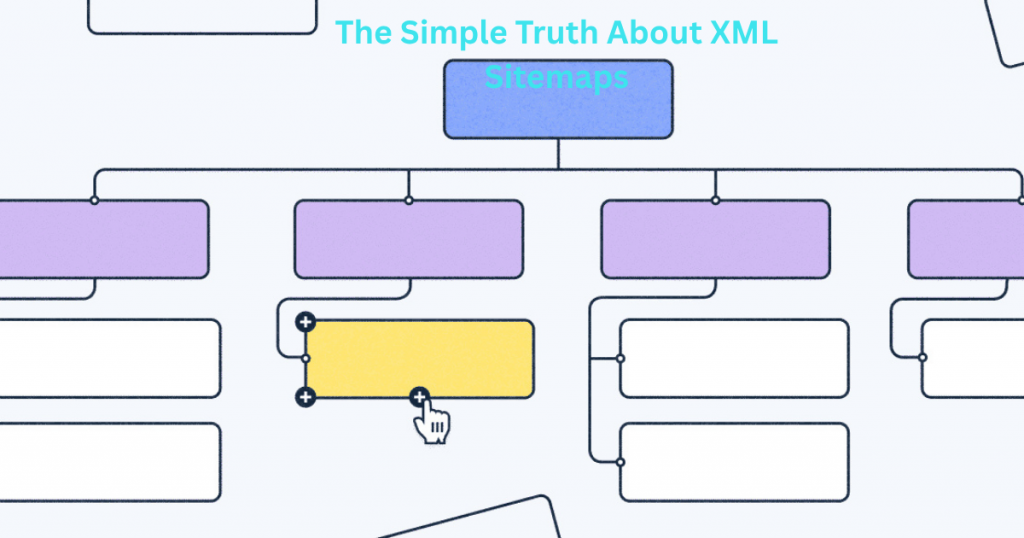
An XML sitemap sounds technical, but it’s just a list of your website pages that helps Google find everything. Think of it like a table of contents for search engines. Most website platforms create one automatically – in WordPress, plugins like Yoast SEO generate it; WIX creates one behind the scenes.
You don’t need to understand the code. Just submit your sitemap to Google Search Console once (it’s usually yourdomain.com/sitemap.xml). After that, Google checks it regularly as you add new content. If you delete pages, update your sitemap so Google knows to stop showing them in results.
While not mandatory, a sitemap ensures no important pages get missed. It’s especially helpful for new sites or sites with lots of pages. Check Search Console occasionally for errors, but otherwise, you can set it and forget it. One less thing to worry about!
HTTPS and Security: What Freelancers Really Need to Know

HTTPS (the padlock in your browser) is no longer optional – Google actually ranks secure sites higher. It encrypts data between your site and visitors, protecting passwords and personal info. The good news? Getting HTTPS is easier than ever. Most hosting providers now offer free SSL certificates with one-click setup.
If your site still shows “Not Secure” warnings, contact your host about enabling SSL. For WordPress users, plugins like Really Simple SSL can help with the transition. After switching, update your Google Analytics and Search Console settings to the HTTPS version of your site.
Beyond HTTPS, keep your website software updated to prevent security risks. Regular backups are crucial too – many hosts provide automatic backups. These simple steps protect both your visitors and your search rankings while building trust with potential clients.
Image Optimization That Won’t Make Your Head Hurt
Images make your site look great, but unoptimized ones slow it down dramatically. The trick is finding the sweet spot between quality and file size. Start by resizing images before uploading – a 2000px wide photo is overkill when it only displays at 600px wide. Use free tools like Squoosh or Canva’s image resizer to shrink dimensions without losing clarity.
Next, compress those images. Formats matter too – use JPEG for photos, PNG for graphics with text, and modern formats like WebP when possible (they’re smaller with same quality). Most website builders have built-in compression, but tools like TinyPNG give you more control. Don’t forget alt text – describe each image briefly (like “freelancer working on laptop”) to help Google understand your content.
The best part? You can batch process images to save time. Do all your image optimizing at once when preparing a new page or blog post. These simple steps can cut your page load time in half, making visitors and Google much happier with your site.
How to Find and Fix Broken Links (In 10 Minutes Flat)
Broken links frustrate visitors and hurt your SEO, but finding them is easier than you think. Start with Google Search Console – it shows which links Google found broken on your site. For a more thorough check, use free tools like Broken Link Checker (for WordPress) or Dead Link Checker (works for any site). These scan your entire site in minutes.
When you find broken links, you have three options:
- Update the link if the page moved
- Remove the link if it’s no longer relevant
- Replace it with a working alternative
For WordPress users, plugins like Broken Link Checker make this process automatic. WIX users can find broken links in their dashboard under “Marketing & SEO.” Set a reminder to check quarterly – it’s one of the fastest ways to improve user experience and SEO with minimal effort.
The No-Stress Way to Monitor Your Technical SEO
Keeping tabs on your technical SEO doesn’t require constant checking. Set up Google Search Console – it emails you when major issues arise. For regular monitoring, check these three things monthly:
- Core Web Vitals in Search Console
- Mobile usability reports
- Index coverage (are all your important pages indexed?)
Create a simple spreadsheet to track key metrics like page speed and crawl errors. Tools like Google Analytics show if your technical improvements are helping (look for lower bounce rates and longer visit times). Most importantly, don’t obsess over daily fluctuations – technical SEO is about long-term trends.
For peace of mind, consider lightweight monitoring tools like Uptime Robot (free for basic monitoring) that alert you if your site goes down. With these systems in place, you’ll catch issues early without wasting time on unnecessary checks.
Final Thoughts
You’ve now got all the tools to master technical SEO – no degree required. These strategies work because they’re simple, practical, and designed for real people running real businesses. Start with one change today, tackle another next week, and watch how these small wins add up to big results.
Remember, every expert started where you are now. The difference? They took action. Your turn! Pick one technical SEO task from this guide and complete it today. That’s how progress begins.
Stuck or need personalised advice? I’m here to help. Email me at info@salahs-portfolio.co.uk with your technical SEO questions – I read and reply to every message.
FAQ
1. “Do I really need to worry about technical SEO as a freelancer?”
Yes! It’s what helps clients actually find you. Simple fixes make your site more visible than competitors who ignore it.
2. “How much time does technical SEO really take?”
Most fixes take under 30 minutes. Just 1-2 hours monthly prevents 90% of common problems.
3. “What’s the easiest technical SEO win for beginners?”
Compressing images – you’ll see faster load times immediately with free tools like TinyPNG.
4. “My site’s built with WIX/WordPress – do I still need this?”
Absolutely! While these platforms handle basics, our guide shows the extra tweaks that make you stand out.
5. “Will technical SEO stuff break my website?”
Not if you follow our safe steps. We only recommend changes that won’t cause problems for beginners.
6. “How do I know if my technical SEO is working?”
Google Search Console shows improvements in “Enhancements” reports – we’ll help you read them.
7. “What’s more important – page speed or mobile-friendliness?”
Both matter equally since 2021. Luckily, fixing one often improves the other.
8. “Can I outsource technical SEO completely?”
You can, but our guide shows what’s worth doing yourself vs. hiring out (we’re honest about it).
9. “What if I make a mistake?”
All our recommended tools have undo options. Plus, your host keeps automatic backups.
10. “Where should I start today?”
Run Google’s PageSpeed Insights test – it gives you a personalized to-do list with no guesswork.

I’m an organised and curious person with a passion for technology and investigative work, currently developing my skills through hands-on experience and IT studies. I enjoy solving problems, working with others, and learning something new every day.