
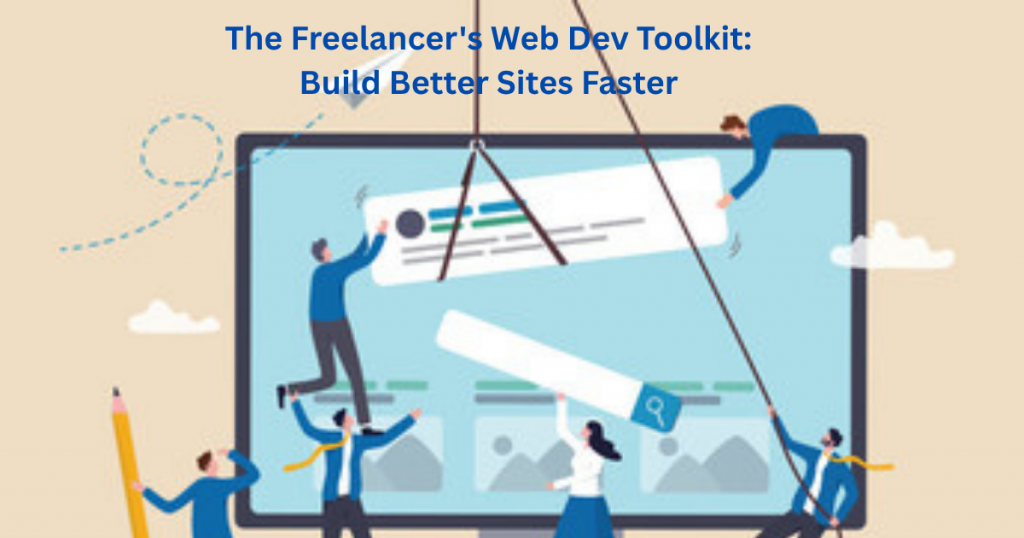
Tired of wasting hours fighting with your website? You’re not alone. Most freelancers struggle with clunky builders, confusing plugins, and sites that never quite work right. Every minute spent fixing technical issues is time stolen from paying clients—and your sanity.
Here’s the hard truth: A slow, broken website costs you jobs. Clients judge you in seconds, and if your site frustrates them, they’ll find someone else. But here’s the good news—you don’t need to be a coding expert to build a pro-quality site.
This toolkit gives you the exact plugins, templates, and simple tweaks that work. No jargon. No overwhelm. Just what you need to create sites that impress clients—without the headaches. Ready to build smarter? Let’s go.
Table of Contents
WIX vs WordPress: Picking Your Perfect Platform
Choosing between WIX and WordPress comes down to your needs and skills. WIX is the easier option—just drag and drop elements to build your site. It’s perfect if you want something simple and fast, with hosting included. WordPress gives you more control but requires more setup. It’s ideal if you need advanced features or plan to grow your site over time.
Think about your technical comfort level. WIX handles updates and security for you, while WordPress needs more hands-on management (though plugins can help). Budget matters too—WIX has all-in-one pricing, while WordPress costs vary based on hosting and plugins. Both platforms work for portfolios, service pages, and blogs, so focus on which feels right for your workflow.
Still unsure? Try both free versions. WIX offers a free plan (with ads), and WordPress has a demo option. Spend an hour with each—you’ll quickly see which clicks with how you like to work. Remember, you can always switch later as your skills grow.
Must-Have Plugins Every Freelancer Should Install
Plugins add powerful features to your site without coding. Start with security—WordPress users need Wordfence or iThemes Security. WIX users should enable two-factor authentication. Next, install a backup plugin like UpdraftPlus (WordPress) or use WIX’s built-in backups. This protects your hard work if anything goes wrong.
For SEO, Yoast (WordPress) and WIX SEO Wiz guide you through optimizations. Want to speed up your site? Try WP Rocket (WordPress) or enable WIX’s built-in performance boost. Contact form plugins like WPForms (WordPress) or WIX’s native forms make client inquiries easy to manage.
Only install what you truly need—too many plugins slow down your site. Check reviews and update regularly. These essentials handle security, backups, SEO, and client communication—everything a freelancer needs to look professional online.
Customising Templates Without Breaking Your Site
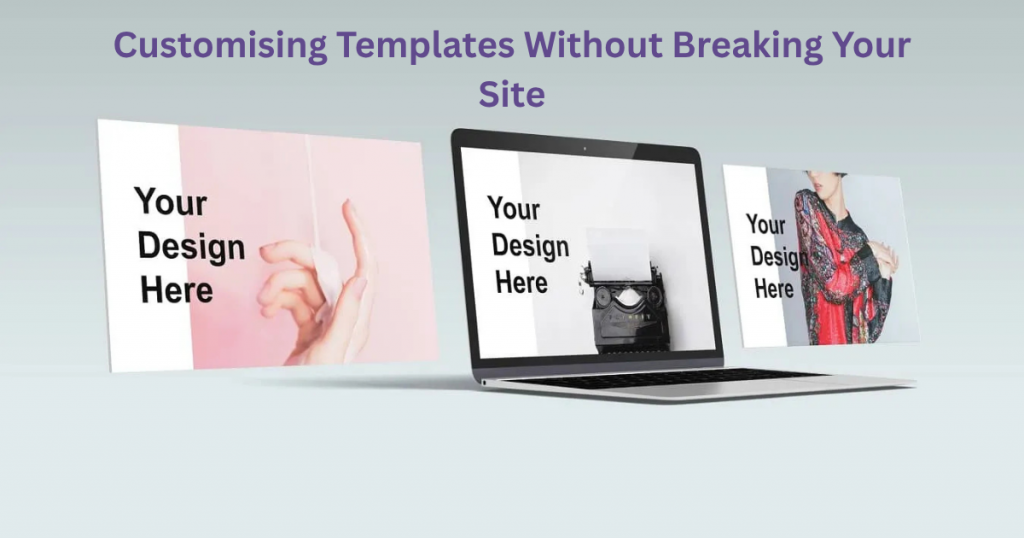
Templates save time but need personal touches to stand out. Always work on a duplicate or staging site first—this lets you experiment safely. For color changes, stick to 2-3 main colors that match your brand. Most builders let you edit these globally so everything stays consistent.
When changing layouts, move elements slowly. Delete unnecessary sections rather than adding too many new ones. For fonts, pick one for headings and one for body text—more looks messy. WordPress users should use the Customizer, while WIX has the Design Manager for safe tweaks.
Test every change on mobile too. Small adjustments like bigger buttons or rearranged sections often make the biggest difference. Remember: clients remember clean, easy-to-use sites—not fancy designs. When in doubt, simpler is better.
How to Create Client-Proof Contact Forms
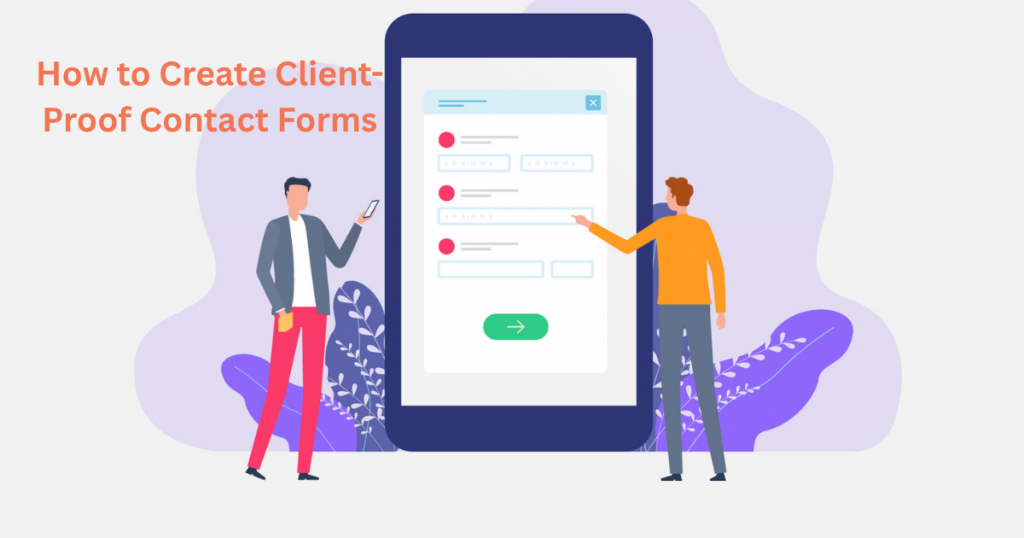
A good contact form makes it easy for clients to reach you while keeping spam out. Start with just 3-5 fields: name, email, and a message box. Too many questions scare people away. Use clear labels like “Your email” instead of just “Email” – this helps avoid confusion. Add a simple dropdown for project types if you offer multiple services.
For spam protection, add a checkbox that says “I’m not a robot” or use Google’s free reCAPTCHA tool. Test your form yourself to make sure you receive submissions – many freelancers miss this step! Set up email notifications so you never miss an inquiry. WordPress users can use WPForms Lite (free), while WIX has built-in forms that work well.
Make your submit button stand out with color and action-oriented text like “Get My Free Quote” instead of just “Submit.” Add a short note under the form like “I respond within 24 hours” to set expectations. These small tweaks can double your form submissions overnight.
Mobile Optimisation Made Simple
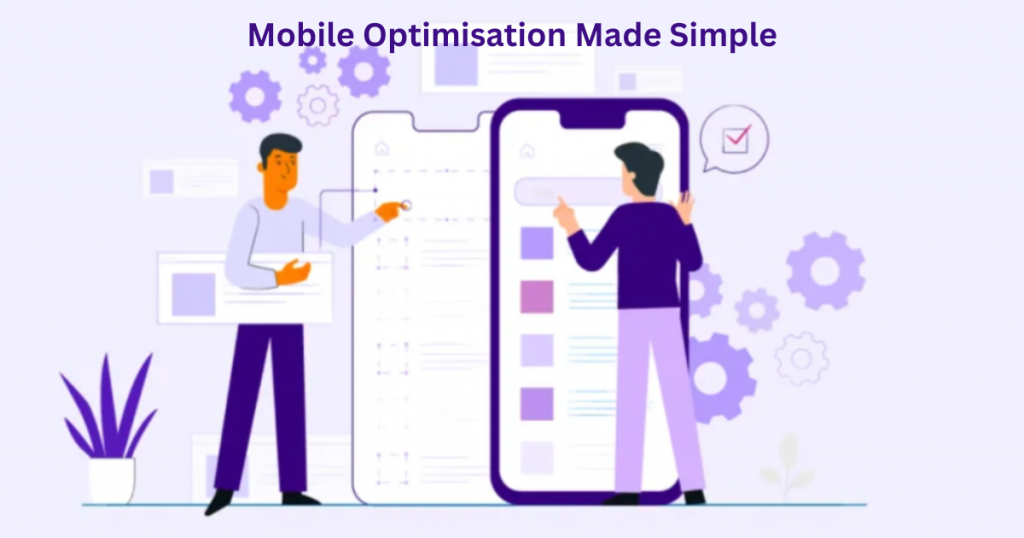
Over 60% of web traffic comes from phones, so your site must work perfectly on mobile. Start by testing your site with Google’s free Mobile-Friendly Test tool. It shows exactly what needs fixing. Make sure text is large enough to read without zooming – at least 16px for body text. Buttons should be thumb-friendly (minimum 48×48 pixels).
Avoid pop-ups that cover the whole screen on mobile – they frustrate visitors. Space out links so fingers can tap them easily. Most website builders have mobile preview modes – use them to check every page. WordPress users should choose “responsive” themes, while WIX automatically creates mobile versions.
Simplify your mobile menus – use a hamburger icon (those three lines) to save space. Remove unnecessary elements that clutter small screens. Images should resize automatically. These changes take minutes but make your site much more professional for mobile users.
Speed Hacks for Non-Techies
Slow sites lose visitors fast, but speeding yours up is easier than you think. First, compress all images before uploading – tools like TinyPNG shrink file sizes without losing quality. Next, enable browser caching – this stores parts of your site so repeat visitors load pages faster. Most hosts have simple settings for this.
Delete unused plugins and widgets – they slow things down. WordPress users should install WP Super Cache (free) or WP Rocket (paid). WIX users can turn off unnecessary animations and apps. Check your hosting plan too – shared hosting is cheap but often slow. Upgrading to better hosting makes a big difference.
Use Google’s PageSpeed Insights to find specific issues. Focus on fixing the “Critical” items first, like large images or render-blocking resources. These simple changes can cut your load time in half, making visitors and Google much happier with your site.
Backup Solutions You’ll Actually Use
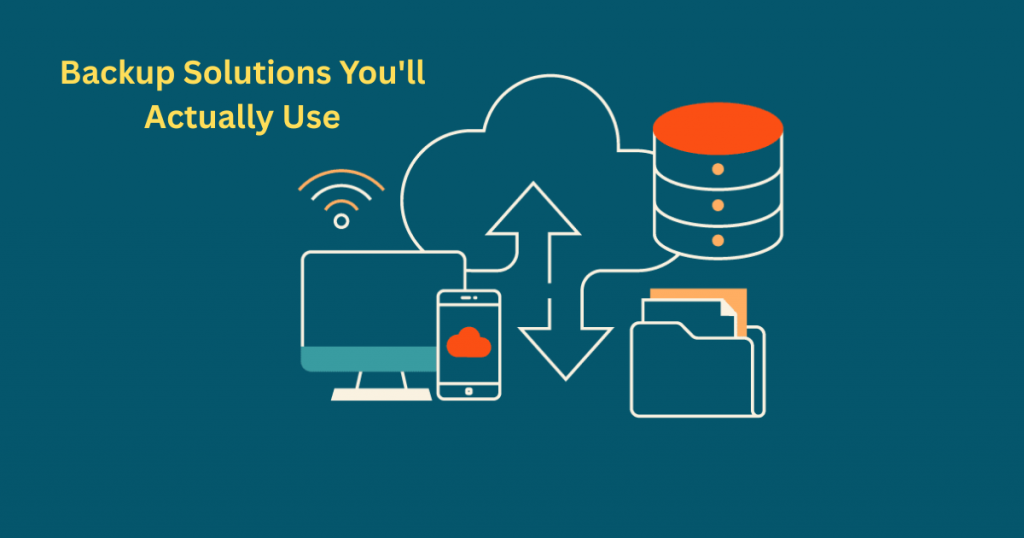
Backups are your safety net, but they only work if you set them up properly. Start by using your host’s built-in backup system—most good providers offer automatic daily backups for free. WordPress users should install UpdraftPlus (free version works great) and set it to store copies in Google Drive or Dropbox. WIX automatically backs up your site, but you should still export your content monthly for extra protection.
Make backups easy to restore—test them! Pick one backup per quarter to restore on a test site. This ensures they actually work when needed. Schedule reminders to check your backups are running—set a calendar alert for the first of each month. For critical sites, keep multiple copies: one on cloud storage, one on your computer, and one with your host.
The best backup system is one you don’t have to think about. Automate everything possible, and focus on what matters—your work. Just 30 minutes of setup prevents countless headaches later when (not if) something goes wrong.
Security Basics That Don’t Require a Developer
Good security starts with simple habits anyone can manage. First, always use strong passwords—a mix of letters, numbers and symbols. Better yet, use a password manager like LastPass or Bitwarden (both have free versions). Enable two-factor authentication everywhere—especially for your hosting account and email.
Keep everything updated—your website platform, themes and plugins. Outdated software is the #1 way hackers get in. WordPress users should install Wordfence (free) or Sucuri for basic protection. WIX users should regularly check connected apps and remove any they don’t use.
Add SSL to your site—it’s usually free through your host. Look for the padlock icon in your browser bar. These basic steps block most common threats without needing technical skills. Set a monthly reminder to check these security basics—it takes 10 minutes but saves you from disasters.
When to DIY vs When to Hire a Pro
Some website tasks are perfect for DIY, others need a pro. Do it yourself when: the fix is simple (like updating plugins), the risk is low (changing colors), or you’re willing to learn. Hire help when: it involves sensitive data, could break your site, or would take you 10x longer than a professional.
Good times to call a pro: custom coding, complex migrations, or fixing hacked sites. For WordPress users, Upwork and Codeable connect you with affordable developers. WIX users can use WIX’s own certified experts. Always get quotes from 2-3 professionals and check their reviews first.
The smart approach? Learn basic maintenance yourself, but budget for professional help on complex jobs. Track how much time you spend wrestling with technical issues—if it’s taking away from client work, it’s probably worth hiring out. Your time is valuable—spend it where you create the most value.
Final Thoughts
You now have all the tools to build and maintain a professional website that works for your freelance business. These strategies aren’t complicated – they’re practical solutions designed for real people with real businesses. The key is to start small, stay consistent, and watch how these improvements add up over time.
Remember, every expert was once a beginner. What separates successful freelancers is taking action. Pick one tip from this guide to implement today, then build from there. Your future self will thank you when clients start finding and trusting your online presence.
Stuck on something? Need personalized advice for your specific website? I’m happy to help. Email me at info@salahs-portfolio.co.ukwith your questions – I read and respond to every message.
FAQ
1. How often should I back up my website?
At least weekly for most sites, or daily if you update content frequently. Automate it so you don’t forget.
2. Is WIX or WordPress better for beginners?
WIX is easier to start with; WordPress offers more growth potential. Try both free versions to see which you prefer.
3. What’s the most important security step?
Two-factor authentication and strong passwords prevent most common attacks.
4. How can I tell if my site is mobile-friendly?
Use Google’s free Mobile-Friendly Test tool – it gives simple pass/fail results with fixes.
5. What plugins are absolutely essential?
Start with: security, backups, SEO, and a contact form plugin. Add others as needed.
6. How much should I pay for website hosting?
£5-£15/month gets you good quality hosting. Don’t choose solely based on price.
7. When should I hire a developer instead of DIY?
For complex coding, major redesigns, or when you’re spending more time fixing than working.
8. How long does it take to learn basic web maintenance?
About 2-4 hours to learn the essentials in this guide. Take it one step at a time.
9. What’s the easiest way to speed up my site?
Compress images and enable caching – these two steps often make the biggest difference.
10. Can I change platforms later if I outgrow WIX/WordPress?
Yes! Many freelancers start with WIX and move to WordPress as their skills grow.
Need more help? Email info@salahs-portfolio.co.uk – I’m happy to answer your website questions!

I’m an organised and curious person with a passion for technology and investigative work, currently developing my skills through hands-on experience and IT studies. I enjoy solving problems, working with others, and learning something new every day.